CONTACT US
How can we help you today?
Our Location
29 Mayflower Gardens, 31
Mayflower Place, Singapore 568894
How Can We Help?
Send us a Message
Please contact us directly by email.
Output resolution
Upload an image to enhance text clarity
Maximum 3 images allowed one time
Click or press Ctrl+V to upload an image. Uploading means you agree to our Terms of Use and Privacy Policy.


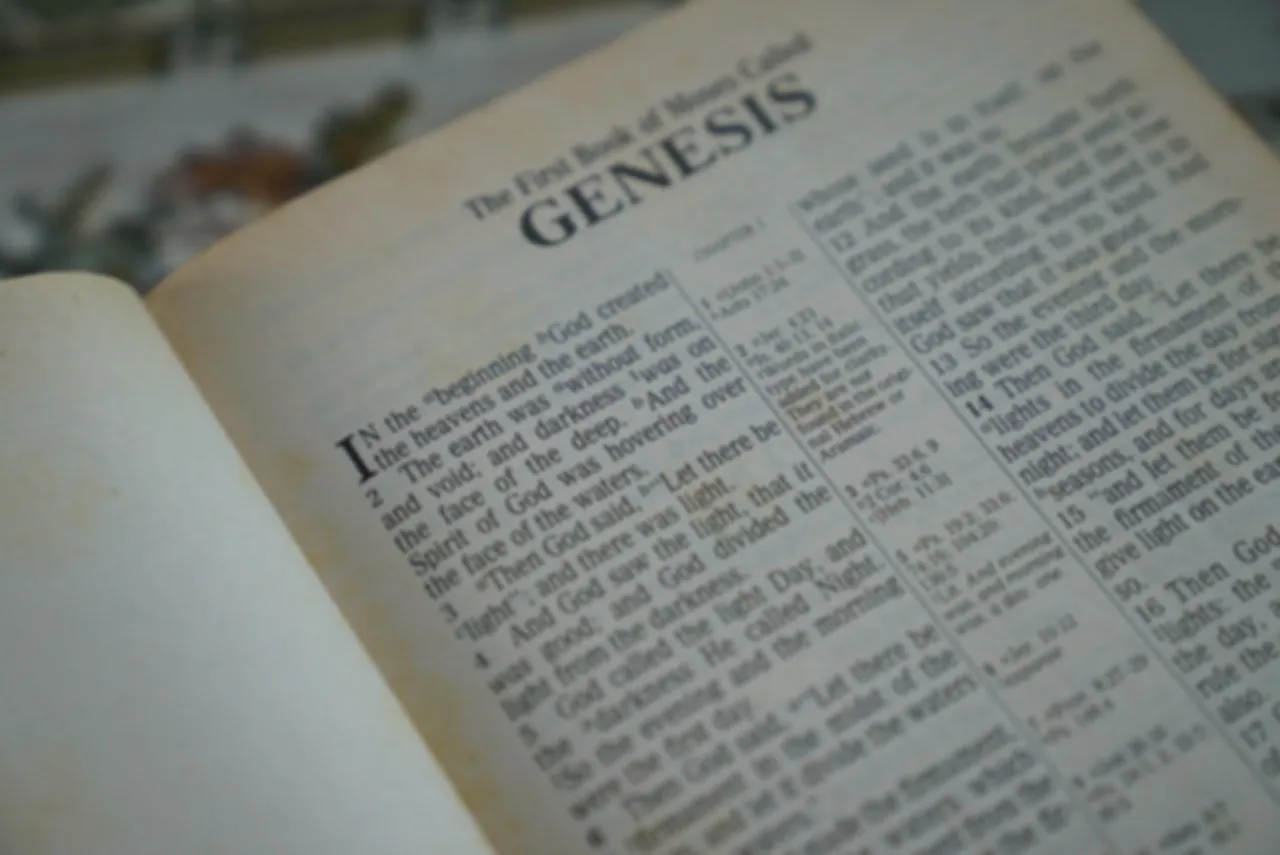
Make mildly or moderately blurry text easier to read without adjusting sharpness and contrast by hand. The AI image text enhancer improves visible character edges and reduces distracting softness in text-heavy images.
Results depend on how much detail remains in the source. If characters are fully obscured, enhancement cannot reliably recover the original wording.
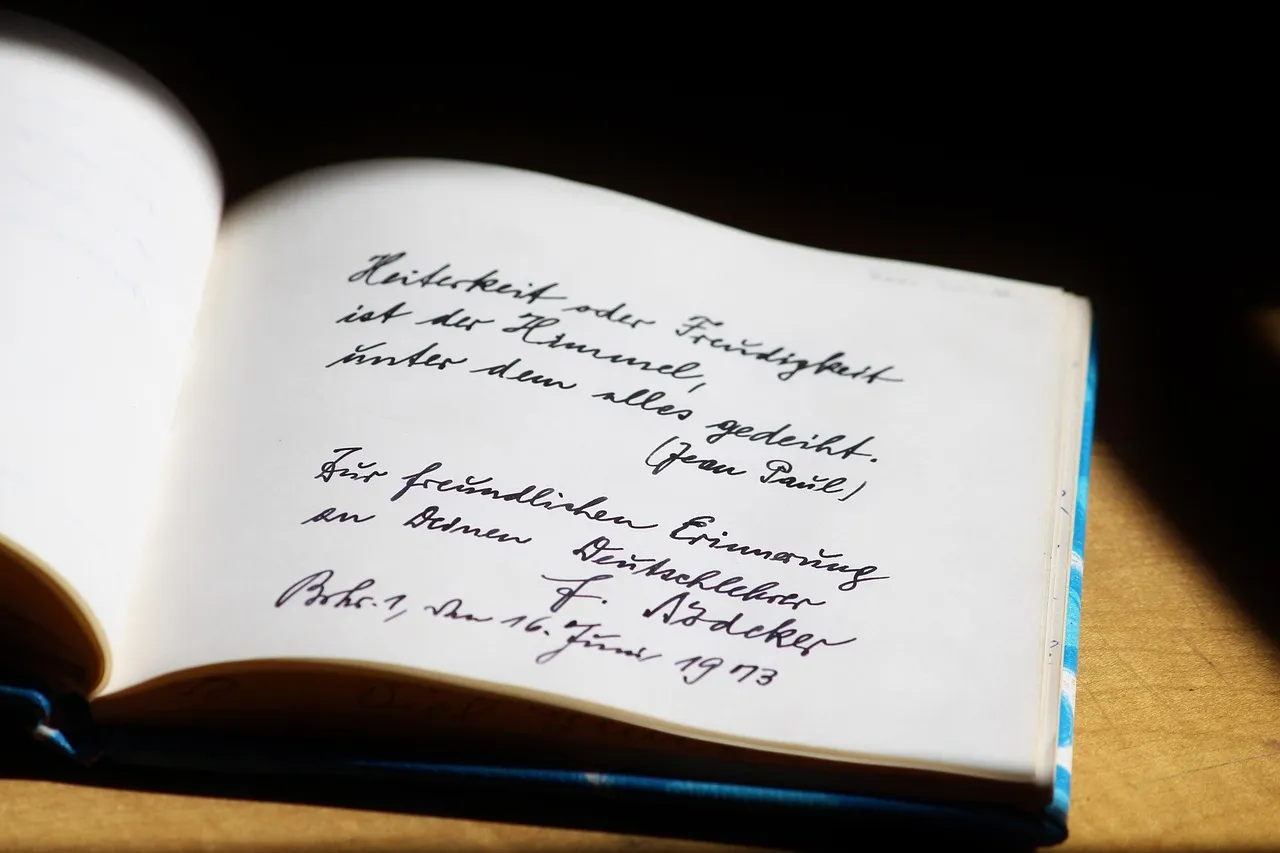
Compression, resizing, and screen capture can make interface labels, chat messages, and small fonts look blocky. Enhance screenshot text to improve edge definition and make on-screen words easier to inspect, share, or reuse in a presentation.
Always compare important names, numbers, and symbols with the source image because AI enhancement may reinterpret severely degraded details.
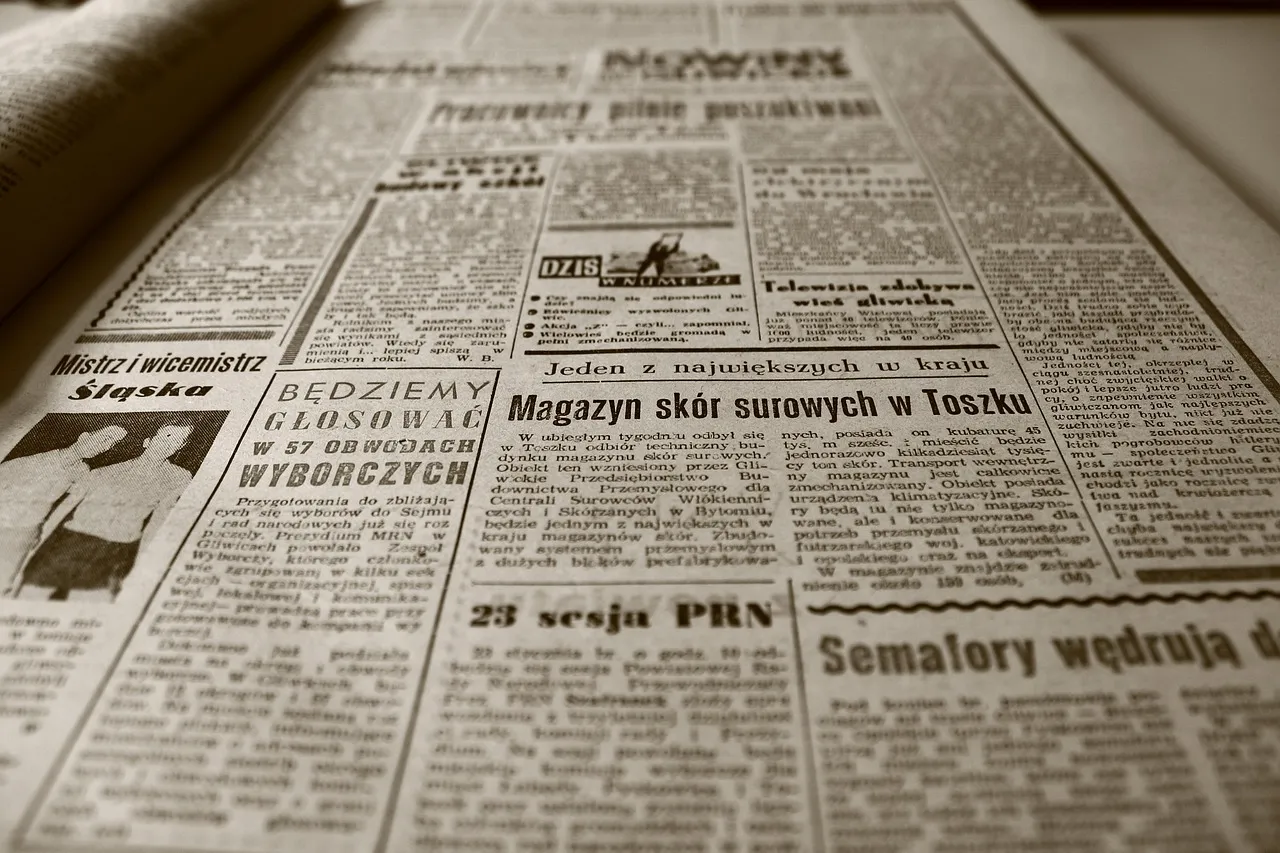
Make photographed pages, receipts, notes, and document scans clearer when low resolution, weak contrast, compression, or slight camera blur reduces readability. The tool enhances the image itself while keeping the visible layout available for review.
For critical documents, treat the result as a viewing aid and verify every important detail against the original.
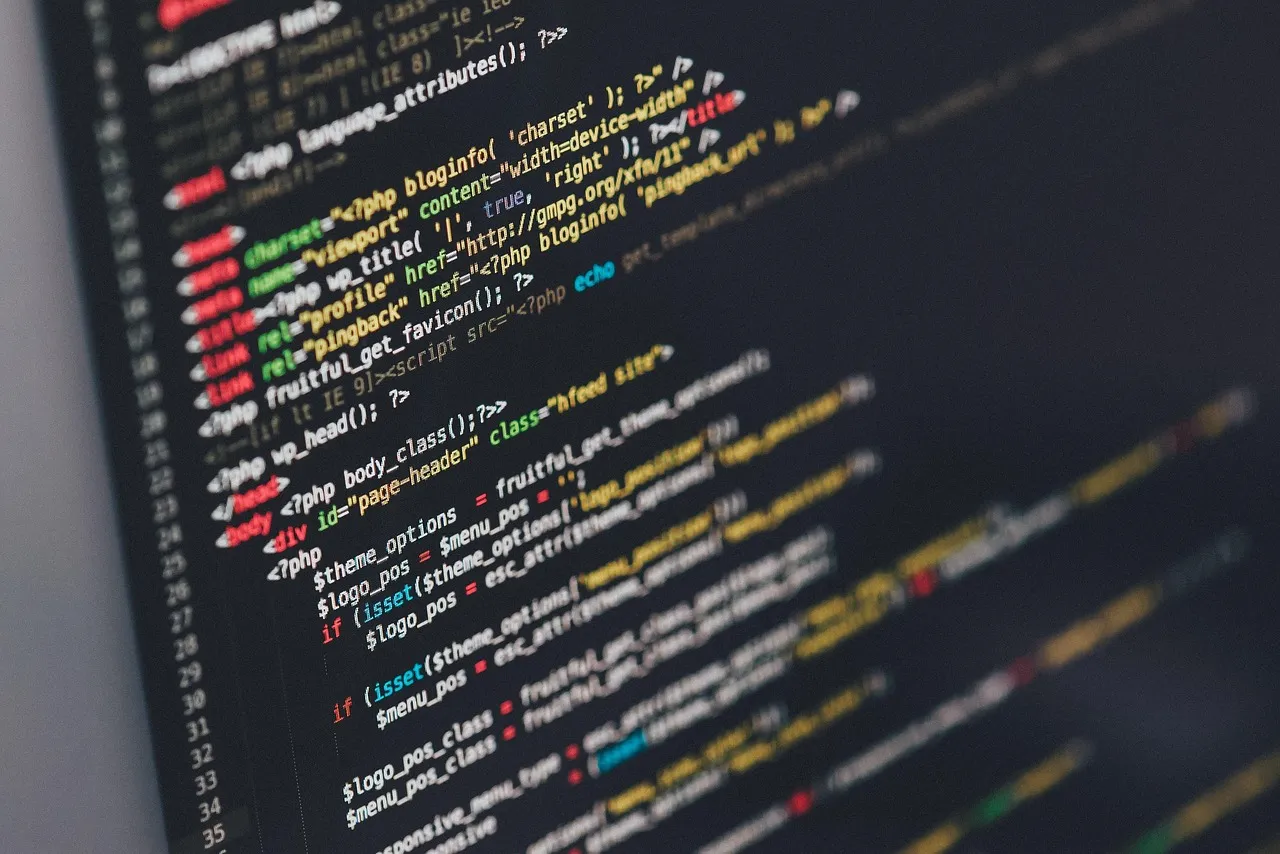
Sharpen text in product photos, packaging, posters, menus, signs, slides, and other visual assets. Improving letter edges and overall resolution can make text-heavy images easier to read on screens and more suitable for sharing or printing.
Enhancement does not replace the original design file and cannot guarantee exact recovery of missing characters.
Sharpen blurry, pixelated, or low-resolution text in screenshots, scanned documents, photos, labels, and other images. AI enhancement improves edges, contrast, and overall clarity to make hard-to-read words easier to recognize.
Preview the result at full size and try another available model when needed, as each model may handle fine details and image quality differently.
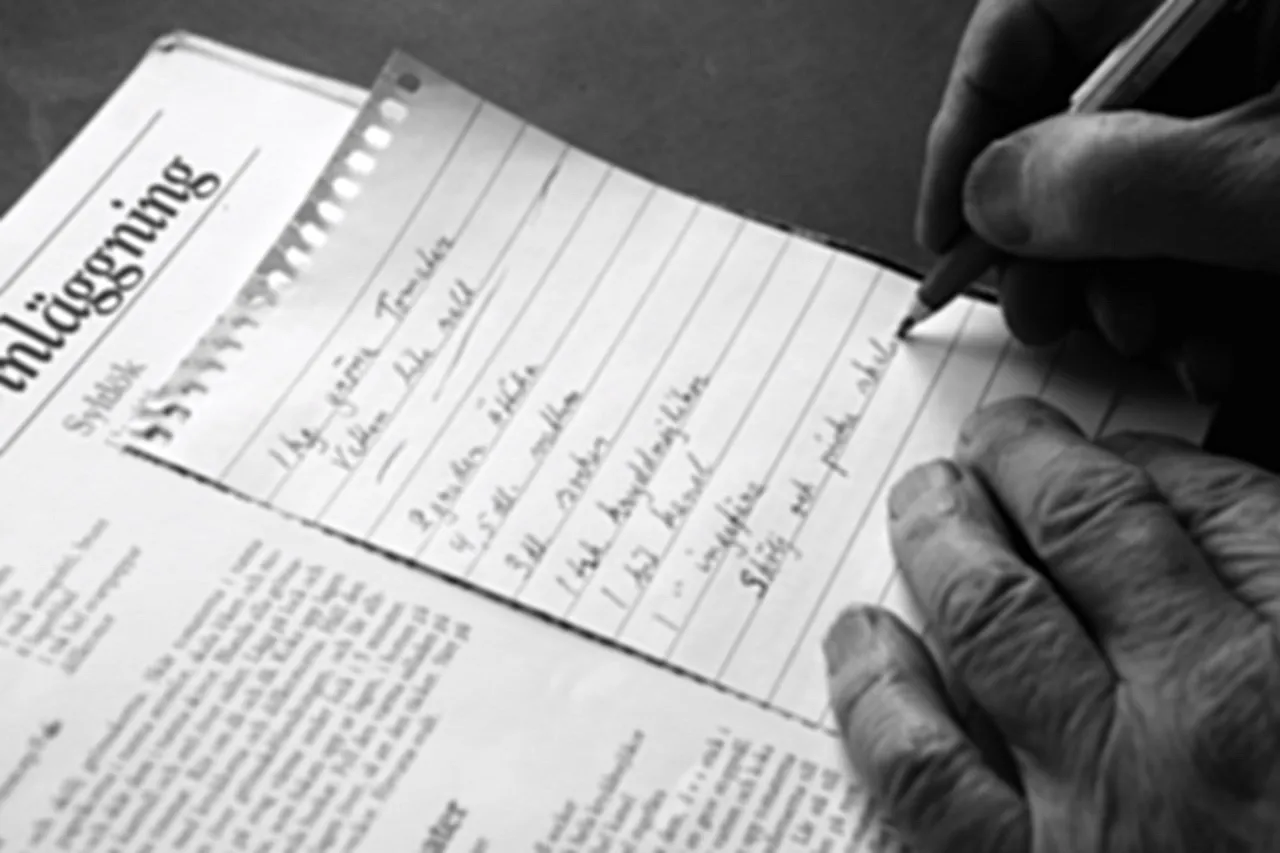
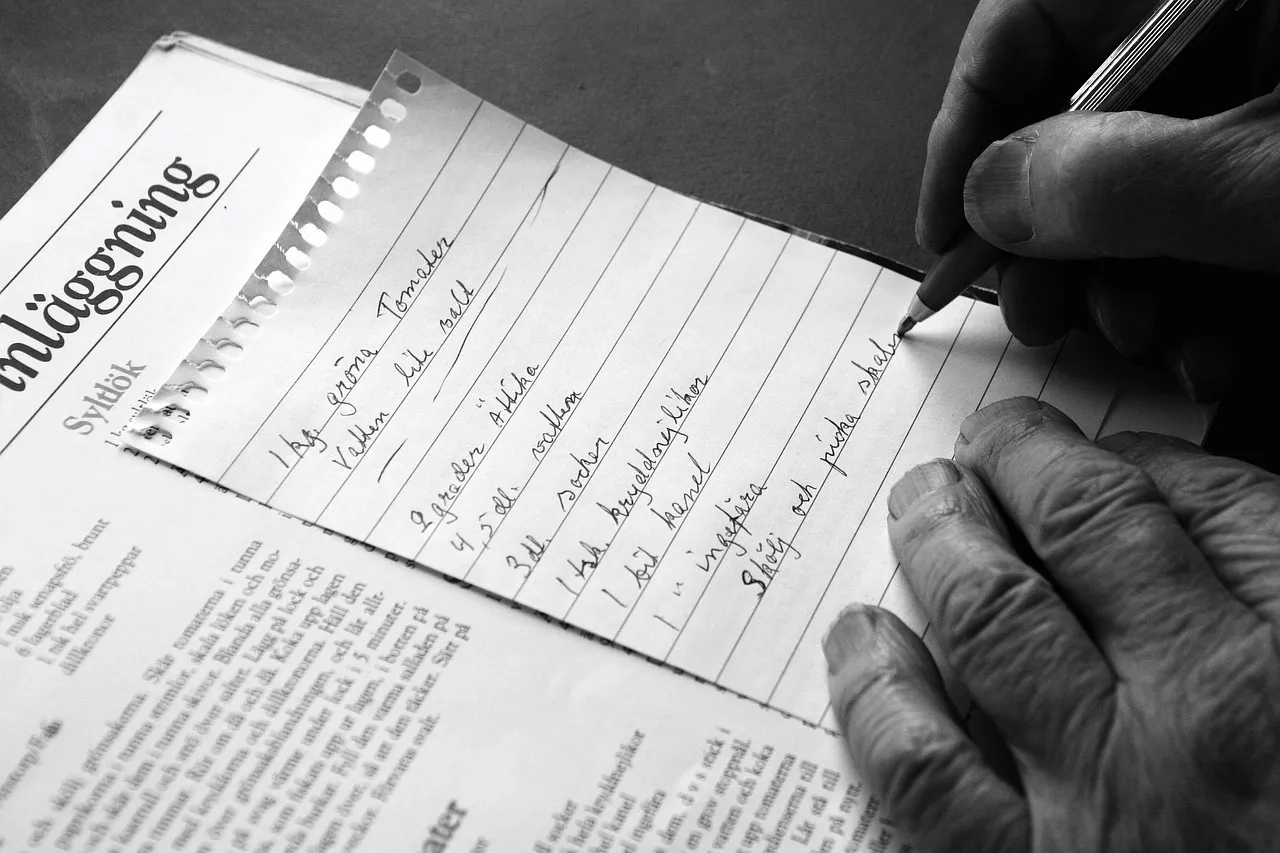
Improve blurry text before printing posters, handouts, product labels, menus, presentation materials, and scanned documents. The enhancer sharpens letter edges and increases visual clarity so text looks cleaner and more readable in print.
Download the enhanced image and check it at the intended print size before printing. For the best result, start with the highest-resolution source available.
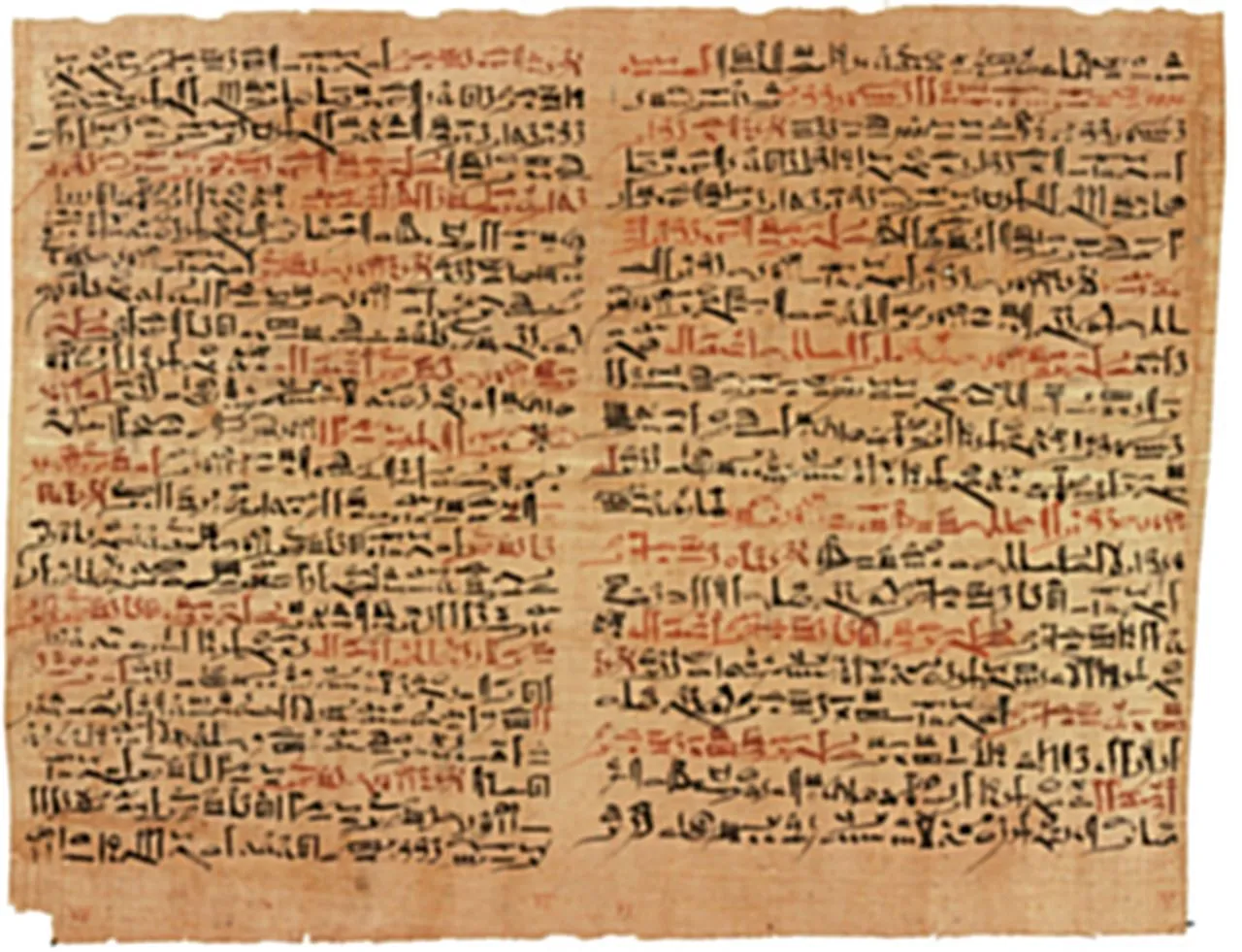
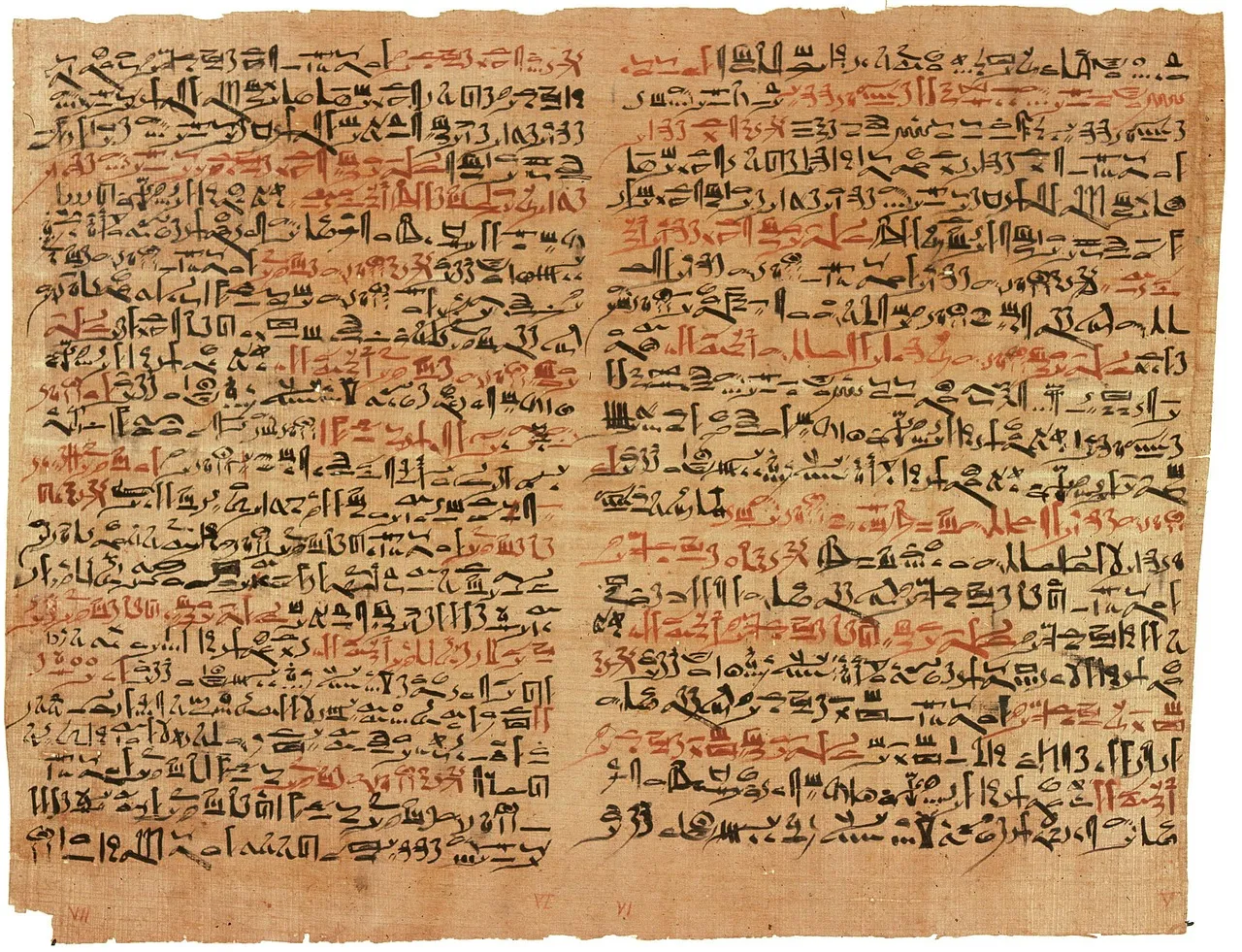
Improve small interface labels, chat messages, web captures, and app screenshots affected by compression or resizing.
Make faint print, soft character edges, and low-resolution document images easier to inspect while preserving the page layout.
Improve the readability of photographed study notes, formulas, diagrams, and whiteboards when focus or lighting was less than ideal.
Enhance ingredient lists, model numbers, instructions, and packaging text before using the image in a listing or presentation.
Make typography in compressed visual assets look cleaner when the original source file is unavailable or too small.
Improve visible dates, captions, signs, and printed text in older images while keeping the original file for verification.
Upload a screenshot, scan, or photo, compare the result, and download the enhanced image. Results depend on the quality and detail in the source.
Choose a JPG, PNG, or WebP screenshot, scan, or photo. Use the highest-quality source available for a more reliable result.
AI will automatically clean noise, sharpen text, and improve clarity.
Inspect names, numbers, and fine characters against the original, then download the enhanced image when the result meets your needs.
Improve visible letter edges, contrast, and resolution in screenshots, scans, labels, notes, signs, and graphics.
Enhance your text images for free with AI and get clear, detailed results in just a few clicks.
Inspect the original and enhanced image before downloading so you can check whether important text remains faithful to the source.
Upload JPG, PNG, or WebP files directly in the browser without converting them first.
Save the enhanced image for reading, sharing, printing, archiving, or use before a separate OCR step.
AI can improve remaining visual detail, but it cannot reliably reconstruct text that is fully missing or unreadable. Verify critical content against the original.
Michael T
Freelance Designer
I had an old screenshot with tiny text that was almost impossible to read. Imgupscaler sharpened the letters and made the details much clearer without making the image look unnatural. It was exactly what I needed for my project.
Sarah L
Small Business Owner
Product labels in one of my photos looked blurry after resizing, but Imgupscaler brought back much better clarity. The words are easier to read and the enhanced image looks clean enough to use in my online listing.
Daniel K
Research Assistant
I used Imgupscaler to improve a low-resolution scan of a printed document. The text edges became noticeably sharper, and I could inspect the page without constantly zooming in and out. A simple and useful tool for difficult scans.
Olivia M
Content Creator
Some text in my social media graphics looked pixelated after compression. Imgupscaler made the typography cleaner and easier to read while keeping the original layout intact. The before-and-after comparison made it easy to choose the better result.
CONTACT US
How can we help you today?
Our Location
29 Mayflower Gardens, 31
Mayflower Place, Singapore 568894
How Can We Help?
Send us a Message
Please contact us directly by email.